Split payslips from a combined PDF and name them automatically
Many payroll programs print all payslips of a month into a single PDF. With Perfora this becomes one file per employee in a few minutes – named by employee number and name. This guide shows you how. It works the same way for invoices, delivery notes or certificates.
1Open the combined PDF
Start Perfora, choose “Split by text” and drag the PDF into the window or select it in the file dialog. Perfora shows the number of pages and a preview.
2Set the split text
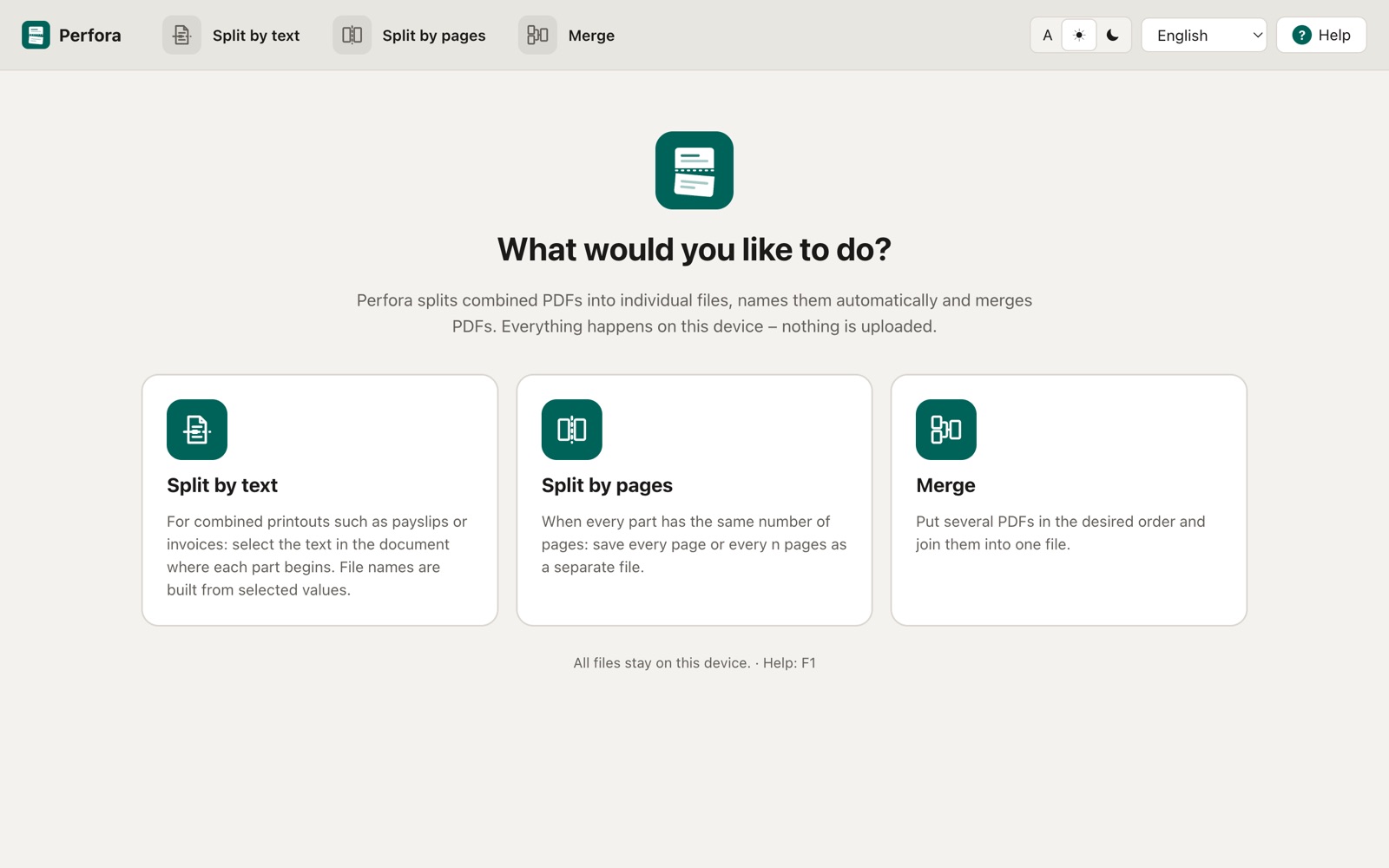
Click a page to open it large and click the heading “Payslip”. Perfora reports on how many pages the text was found and how many files will be created. If the text is on the last page of each part, switch that setting.
 Perfora
3Mark the fields for the file name
Select the employee number and drag the mouse across the name. If there is a label in front such as “Employee no.:”, Perfora reads the value after that label in every payslip. For each field you see in how many files it was found.
Perfora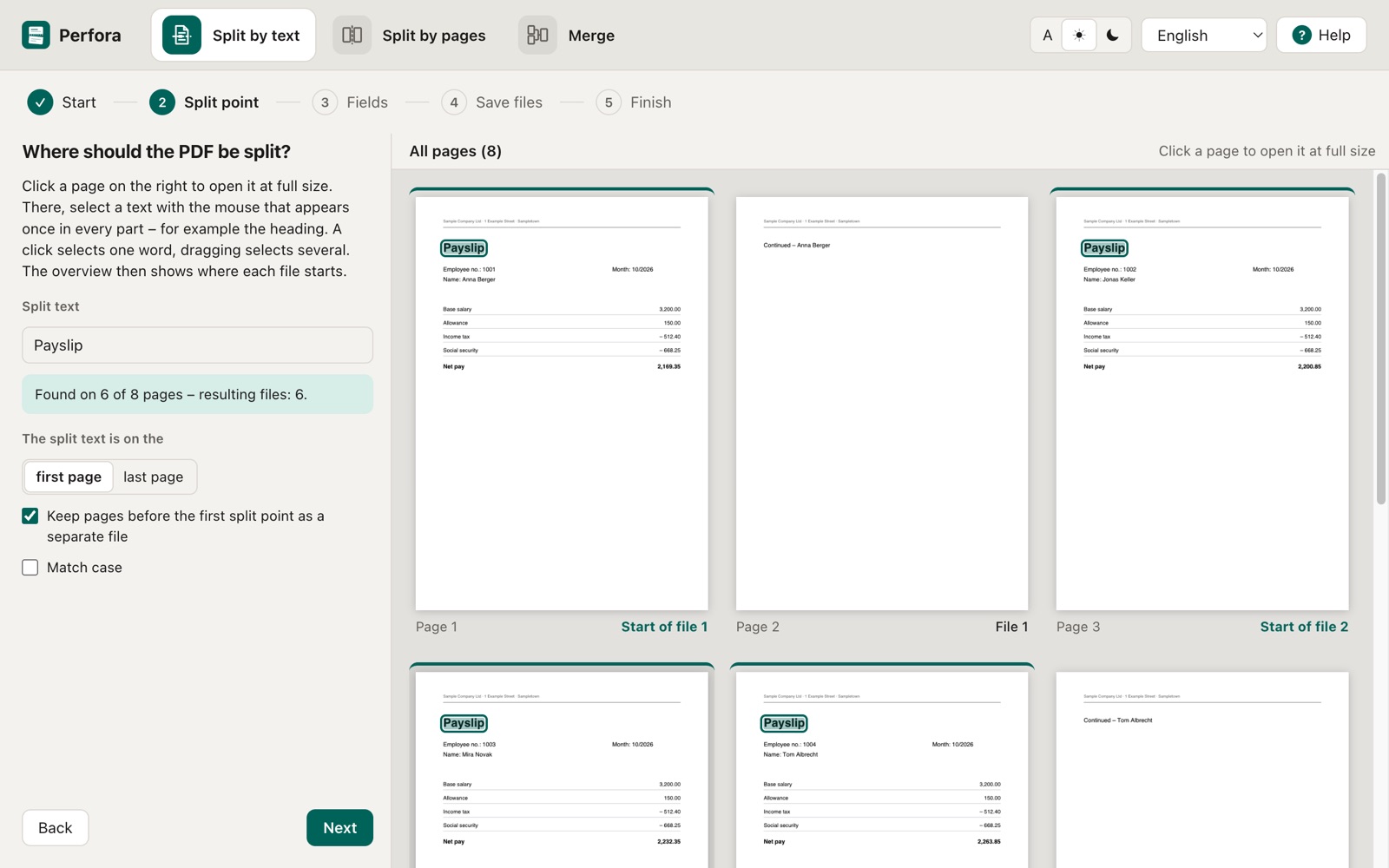
4Build the file name
Click the building blocks in the order you want, for example employee number, name and your own text such as “Payroll_2026-10”. Choose underscore, hyphen or space as separator.
Perfora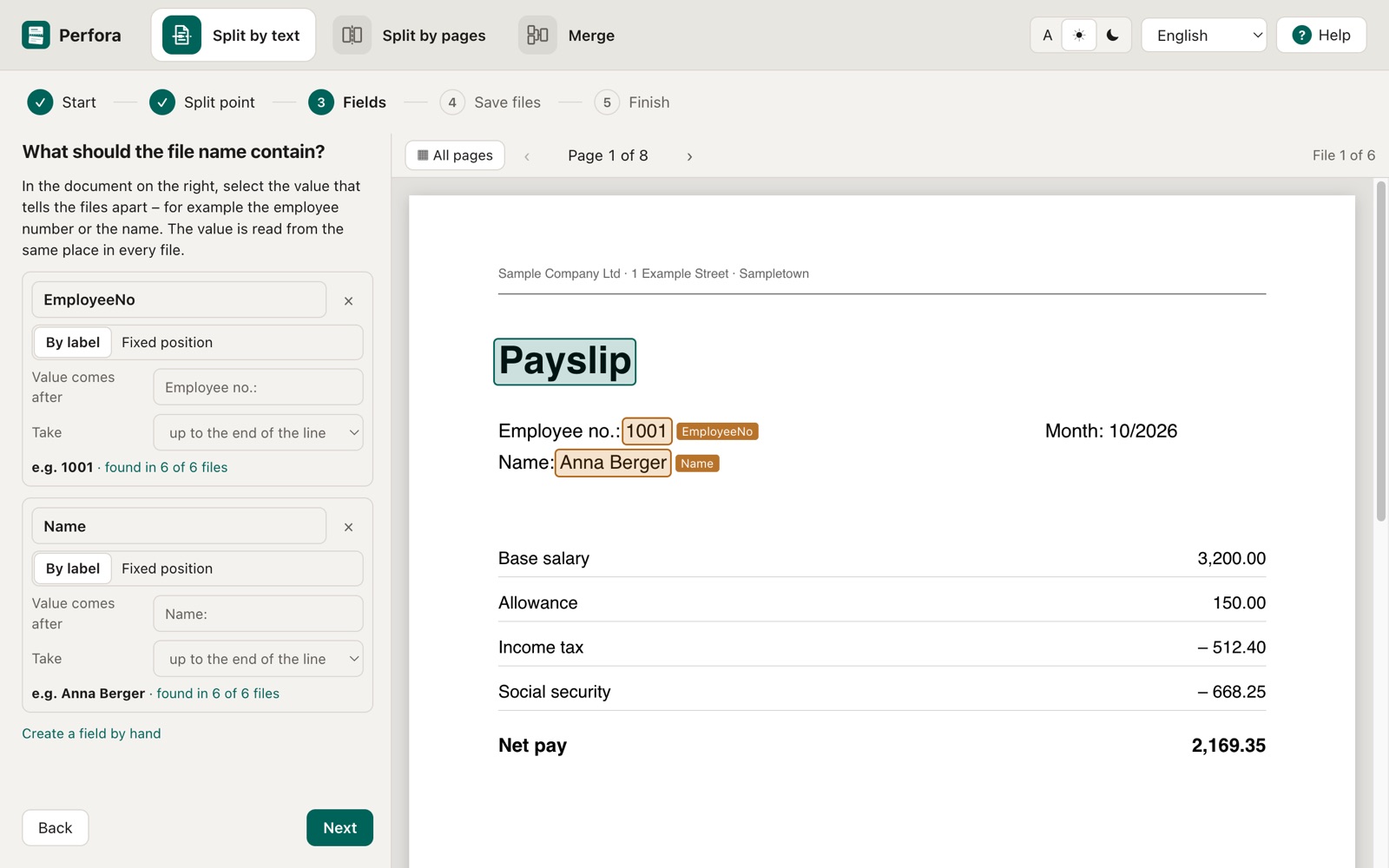
5Check and save
The preview shows every file with its page range and name. Individual names can be overwritten. Click “Save files” and choose the target folder.
6Save as a template
Save the settings as a template. Next month, choose the template, load the new PDF and go straight to the finished preview.
Perfora